
In this article, you'll learn:
- Who has permissions to create integrations in Starred
- How to integrate Starred with Greenhouse
- What data Starred has access to in your Greenhouse environment
What permissions do you need to do this?
- In Starred: you need to be an Admin.
- In Greenhouse: you need permissions to create API keys and ,anage and configure webhooks. If you do not have them, ask your Greenhouse Administrator to grant them before proceeding.
1. Create a Harvest API Key in Greenhouse
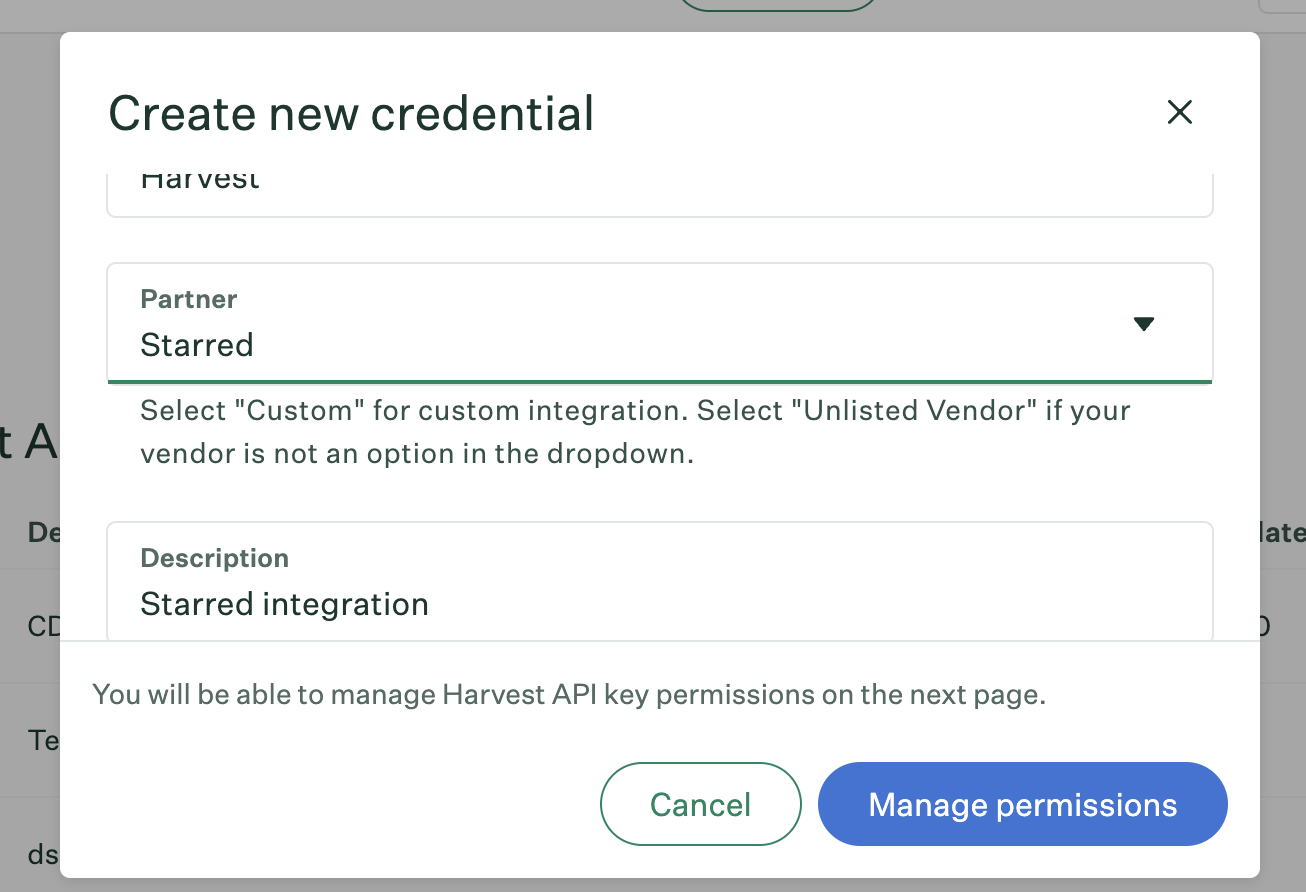
- Go to the Greenhouse API Credentials page
- Click Create New API Key.
- Set API Type to Harvest.
- Choose Partner = Starred.
- Enter a short description, such as “Starred integration”
- Click Manage Permissions.
- On the next page, copy and store your new API Key before proceeding.
If you lose the key, you'll have to create a new one.
2. Adjust API Key Permissions
Assign the following permissions to your new API Key:
- Applications → Get: Retrieve Application
- Scheduled Interviews → Get: List Interviews for Application
- Departments → Get: List Departments
- Jobs → Get: Retrieve Jobs
- Job Posts → Get: List Job Posts
- Job Posts → Get: List Job Posts for Job
- Sources → Get: List Sources
- Users → Get: Retrieve User
- Custom Fields → Get: Get Custom Fields
- Candidates → Get: Retrieve Candidate
✅ Once permissions are added, save your changes.
3. Get Your Endpoint URL and Secret Key from Starred
1. Go to your Settings
2. Click on Integrations
3. Find Greenhouse in the list
- Click on Connect
Save both values securely — you’ll need them to configure your Greenhouse webhooks.
4. Configure Webhooks
Next, create webhooks in Greenhouse that notify Starred of candidate events.
1. Go to the Webhooks Settings page in Greenhouse.
- You’ll need to create four webhooks using the same Endpoint URL and Secret Key from Starred.
2. For each webhook:
- Click Create Webhook
- Fill in the details below.
- Use the same Endpoint URL and Secret Key each time.
| Webhook | Name | When |
| Candidate Hired | Candidate hired | Candidate has been hired |
| Candidate Rejected | Candidate rejected | Candidate or prospect rejected |
| Offer Created | Offer Created | Offer Created |
| Candidate Applied | Candidate Applied | Candidate has submitted application |
5. Validate the Webhooks in Starred
-
Go back to Starred
-
Click Validate webhooks.
✅ A green confirmation message will appear if everything is correct.
-
Click Finish setup.
🎉 That’s it! Your Greenhouse integration is now active.