
In this article, you'll learn:
- Who has permissions to create integrations in Starred
- How to integrate Starred with Greenhouse
- What data Starred has access to in your Greenhouse environment
What permissions do you need to do this?
- In Starred: you need to be an Admin.
- In Greenhouse: you need permissions to create API keys and manage and configure webhooks (Site Admin). If you do not have them, ask your Greenhouse Administrator to grant them before proceeding.
Configure the Starred integration
- Log into your Starred account.
- Once logged in, navigate to Company settings > Integrations > Greenhouse
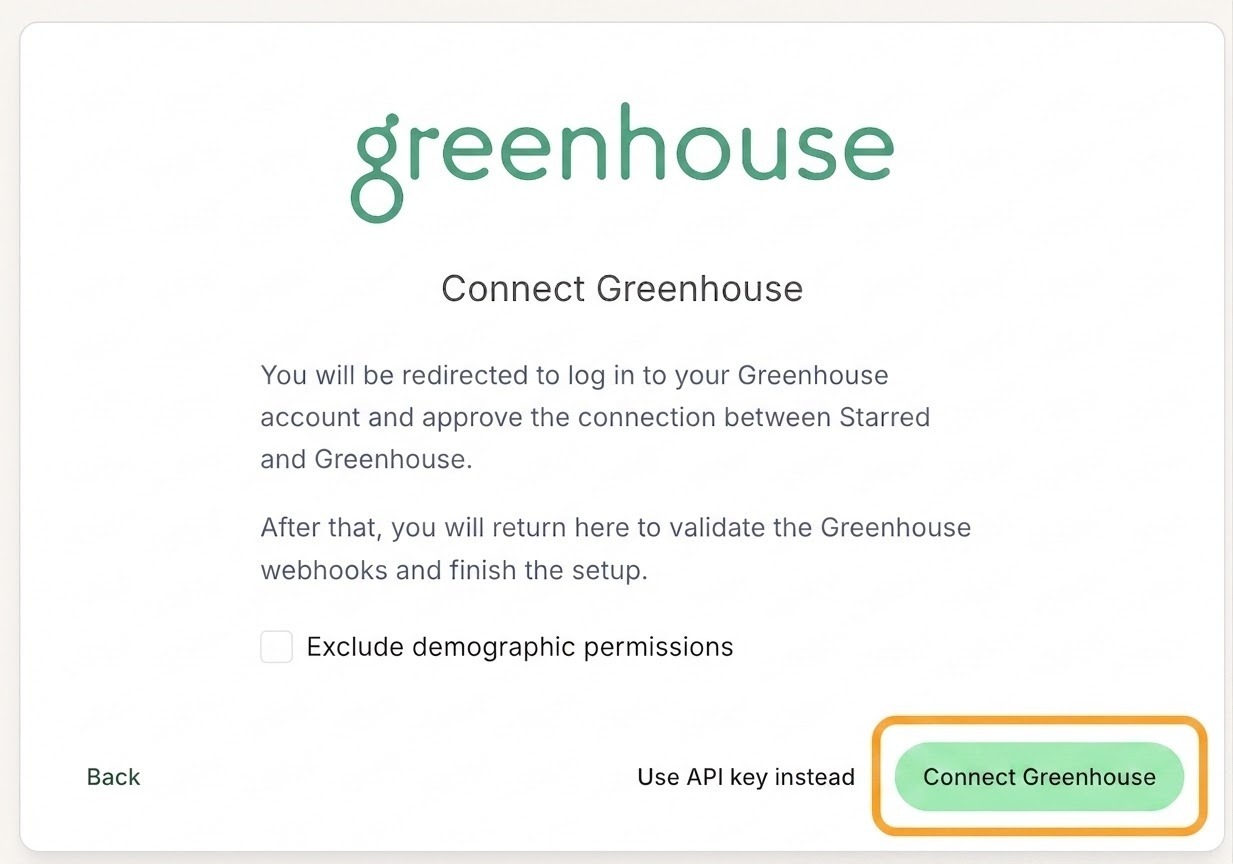
- Click "Connect Greenhouse" and follow the steps.
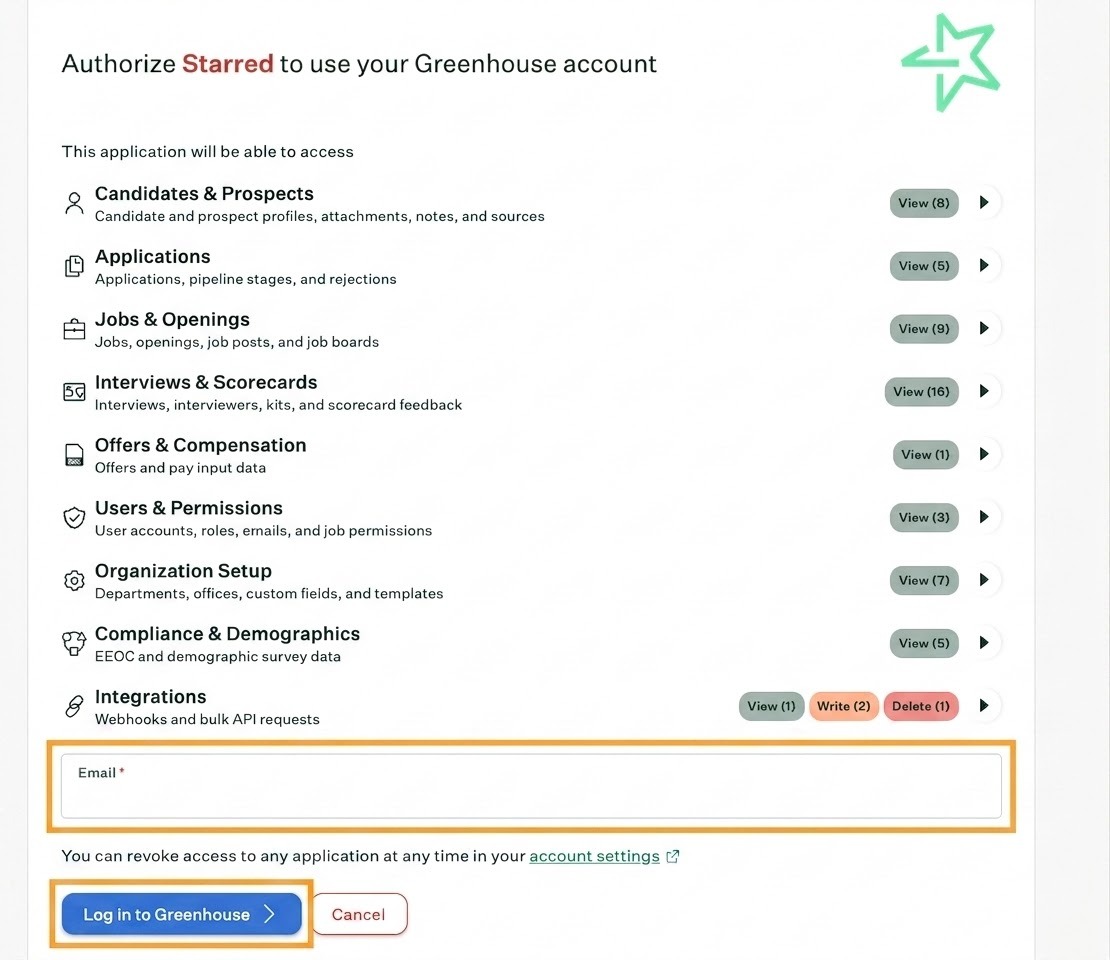
- Enter the email address of your Greenhouse user and click “Log in to Greenhouse”
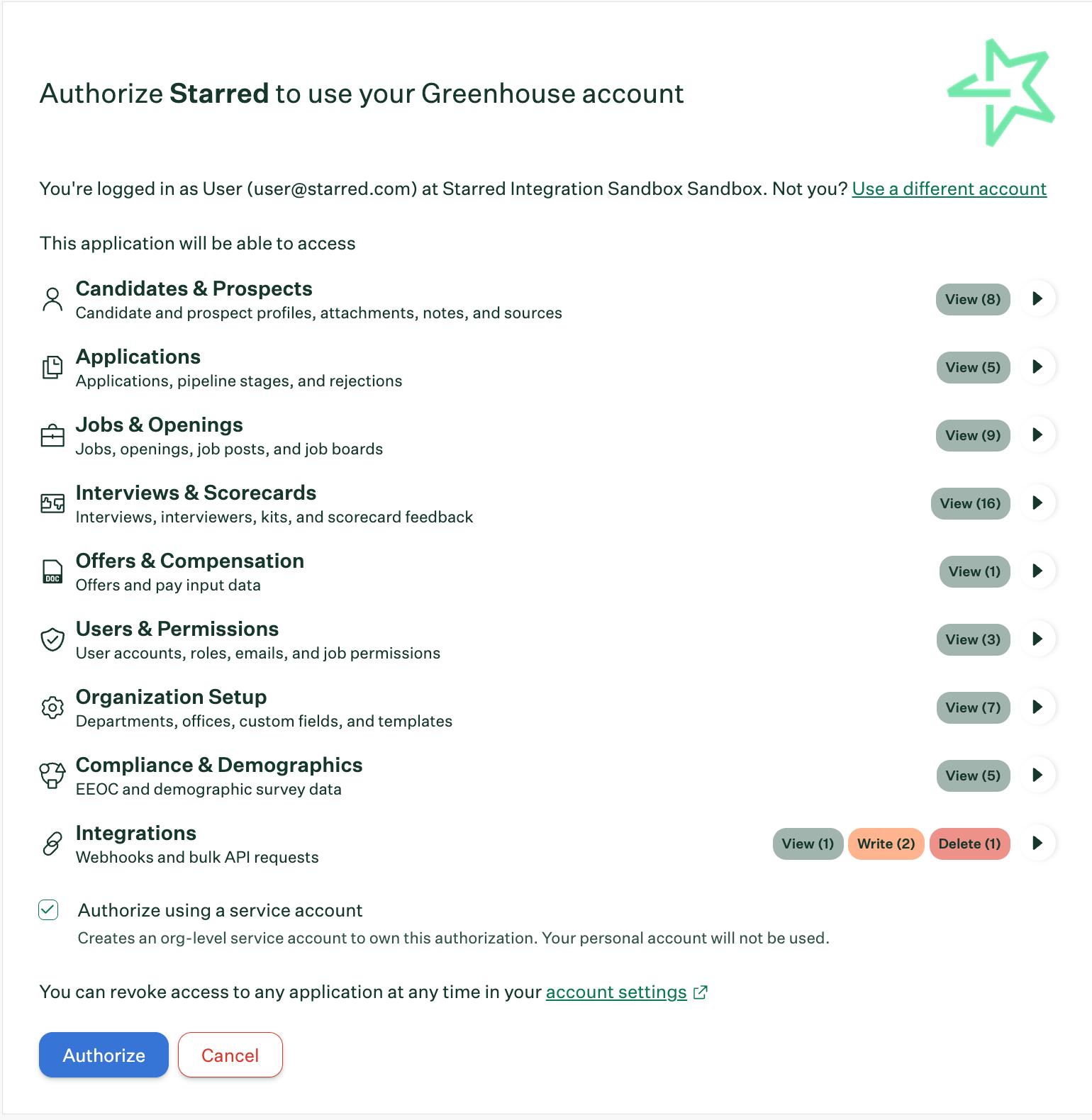
- In the next page, check the “Authorize using a service account” checkbox and then “Authorize”. See the following Greenhouse support article for more information on service accounts.
- You will be redirected back to Starred. You will now have to create 4 webhooks in Greenhouse based on the information presented. See the following Greenhouse support article for more information on webhooks.
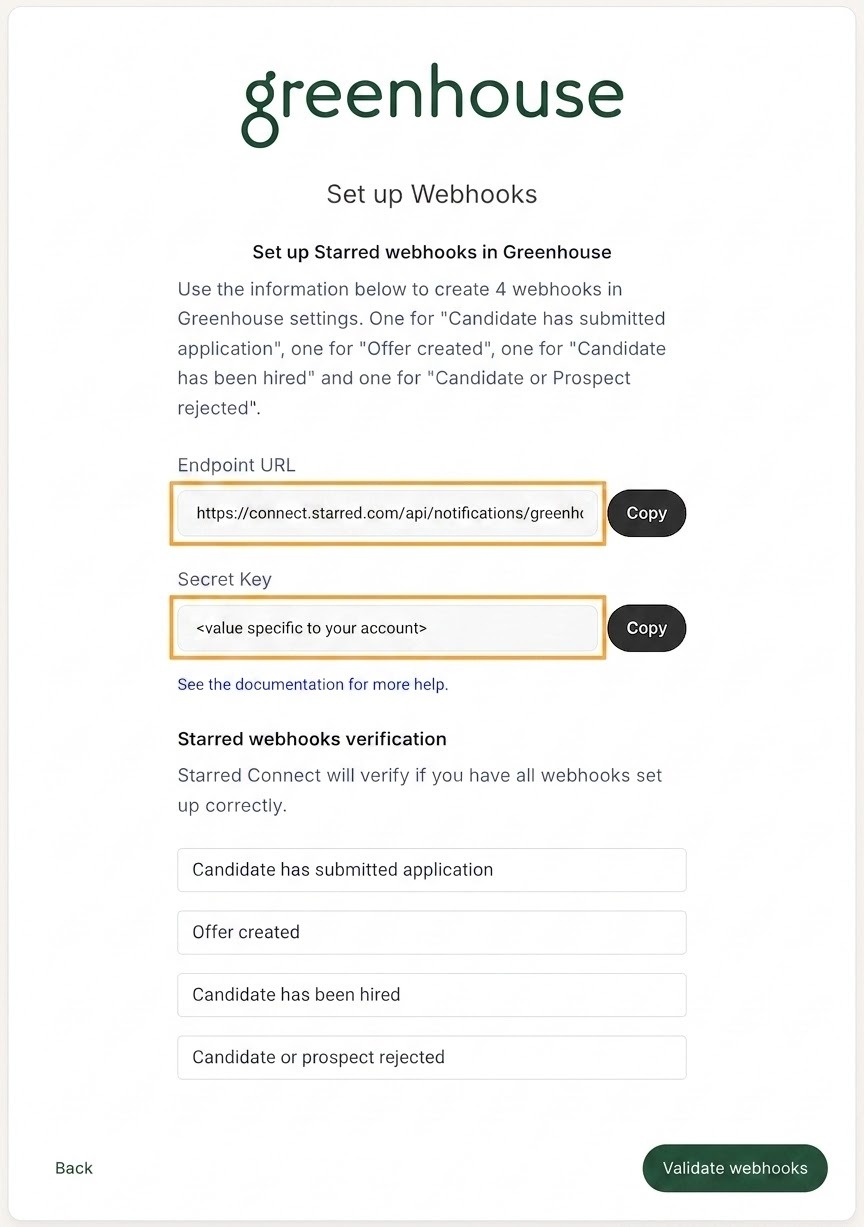
- Use the “Endpoint URL” and “Secret Key” provided in Starred to create 4 webhooks in Greenhouse. The values below correspond to the “When” dropdown:
- Candidate has submitted application
- Offer created
- Candidate has been hired
- Candidate or Prospect rejected
- Once done, select “Validate webhooks” to complete the process.