
In this article, you'll learn:
- Who has permissions to create integrations in Starred
- How to integrate Starred with Lever
- What data Starred has access to in your Lever environment
What permissions do you need to do this?
- In Starred: you need to be an Admin.
- In Lever: you need to be a Lever Admin to integrate Starred.This is to ensure that the user that integrates the apps won't be deactivated in the future. When the Lever user who integrated Starred gets removed from Lever, Starred gets disconnected.
How to Connect Lever with Starred
- Go to your Settings
- Click on Integrations
- Find Lever in the list
- Click on Connect
- You will be redirected to Lever to log into your account
- Allow Starred to access your Lever account
- Click on Accept
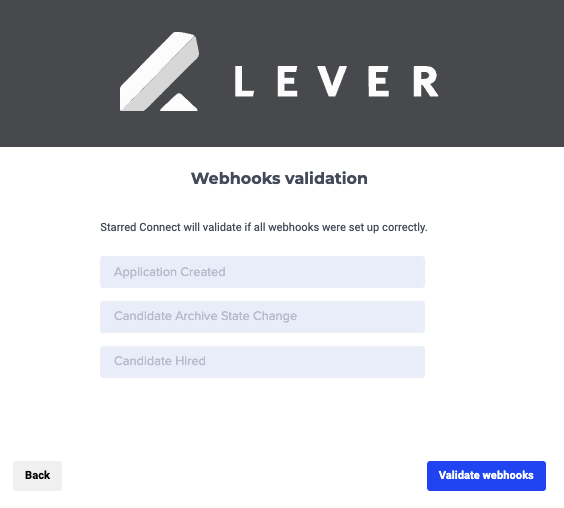
- Starred automatically creates the signing tokens for 3 webhooks
- Click on Validate webhooks
Activating the webhooks in Lever
Your last step is to check if the toggles for the 3 webhooks in Lever are active.
- Log into your Lever account
- Navigate to your Settings.
- Go to Integrations and API
- Go to Webhooks.
- Find the 3 webhooks that Starred created.
- Activate the webhooks if they are inactive.
| Webhook |
| Candidate archive stage change |
| Candidate hired |
| Application created |
🎉 That’s it! Your Lever integration is now active.