
In this article, you'll learn:
- Who has permissions to create integrations in Starred
- How to set up your SAP Successfactors account
- How to integrate SAP Successfactors with Workday
- What data Starred has access to in your SAP Successfactors environment
- The limitations of this integration when it comes to candidate surveys
What permissions do you need to do this?
- In Starred: you need to be an Admin.
- In SAP: we recommend an Admin user to do the integration. The Admin user requires the following permissions to set up the integration:
- Use the OAuth data API (get user access tokens)
- Read the following OData API entities: Candidate, CandidateProfileExtension, JobApplication, JobRequisition
- Get OData API metadata for the following entities:
- OData API Application Export
- OData API Candidate Export
- OData API Job Requisition Export
- OData API Application Audit Export
- If CandidateProfileExtensions is enabled: MDF Recruiting Permissions CandidateProfileExtension View MDF Recruiting Permissions CandidateProfileExtension Import/Export
Set up your SAP SuccessFactors account
Register an OAuth Client Application
Follow the instructions on the SAP Help Portal to register an OAuth Client Application on your SAP SuccessFactors instance. You will need the private key (private.pem) and the generated API Key in the next step.
👍 Good to know
Application URL: as stated in the SAP SuccessFactors documentation the URL is not currently supported, however you may enter “https://connect.starred.com”
How to connect SAP Successfactors with Starred
- Go to your Settings
- Click on Integrations
- Find SAP Successfactors in the list
- Click on Connect
- Fill in the following fields:
|
Field |
Explanation |
|---|---|
|
API Server |
You can lookup the API Server for your data center in this list |
|
CompanyID |
If you need help in finding your CompanyID read this article |
|
Username |
The username of a SuccessFactors user that will be associated with the api calls. We recommend creating a dedicated api user for this integration. This user must have the appropriate permissions. |
|
API Key |
The API Key generated in the previous step |
|
Private key |
The contents of the private key from the key-pair used in the previous step including |
- Click Connect.
- On the next page, Starred will display username, password and REST API URLs. Please save them because you will need them in the next step.
Import the Integration Center Definition templates
Download the .icd template files, and upload them as described on the SAP Help Portal starting at step 2. There are 3 templates, one for each trigger type:
Verify the "Destination Settings" and make sure the REST Server and the Operation URI match the values stored in the previous step. We recommend to create a single REST destination setting and reference it from all 3 integration definitions.
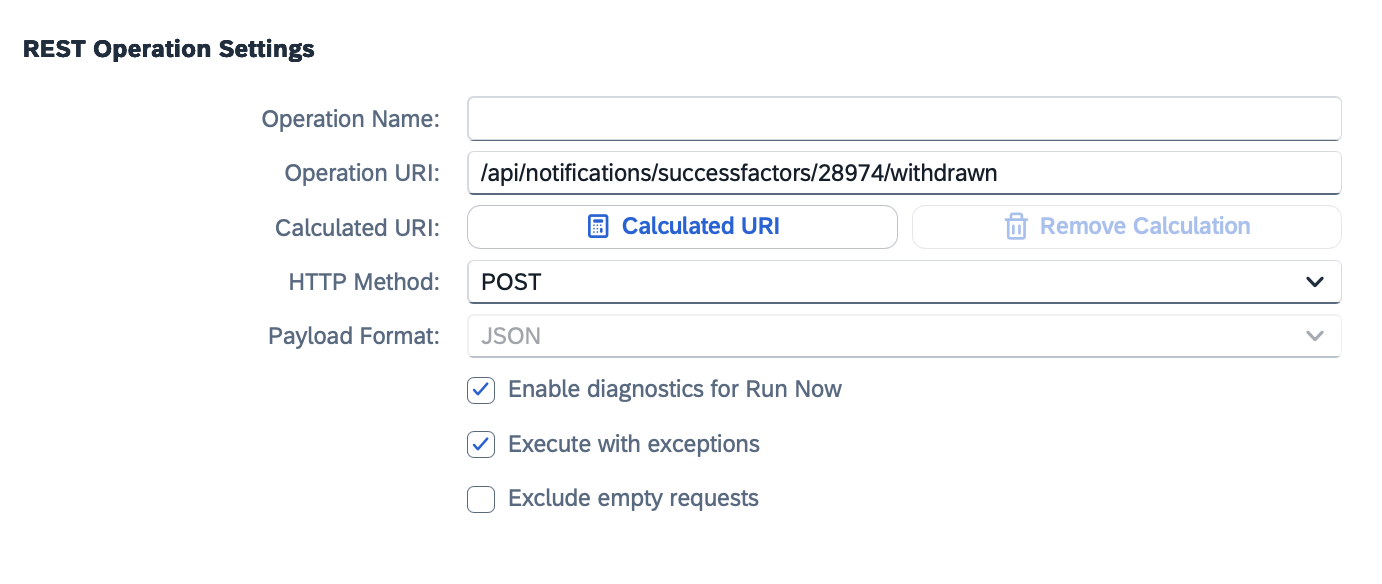
Make sure the operation URL in the REST Operation Settings follows the format shown below. The number in the URL should match your company ID. If you're unsure what your company ID is, please reach out to support or your Customer Success Manager.
Trigger the integrations in Intelligent Services Center
The next step is to configure the integrations to be triggered when a Job Application Status is changed.
- Open the Intelligent Service Center
- Search and click the "Update of Job Application Status" event in the list
- In the right pane under "Custom Activities", click "Integration". This will open a popup which should display the 3 integrations created in the previous step.
- Add each integration and click "Save Flow" when done. You should see a message that the flow is saved and published successfully. To save, click on the 3 dots on the top right corner.

For more information see this SAP Knowledge Base Article.
The integration is now completed.
Configure Fields
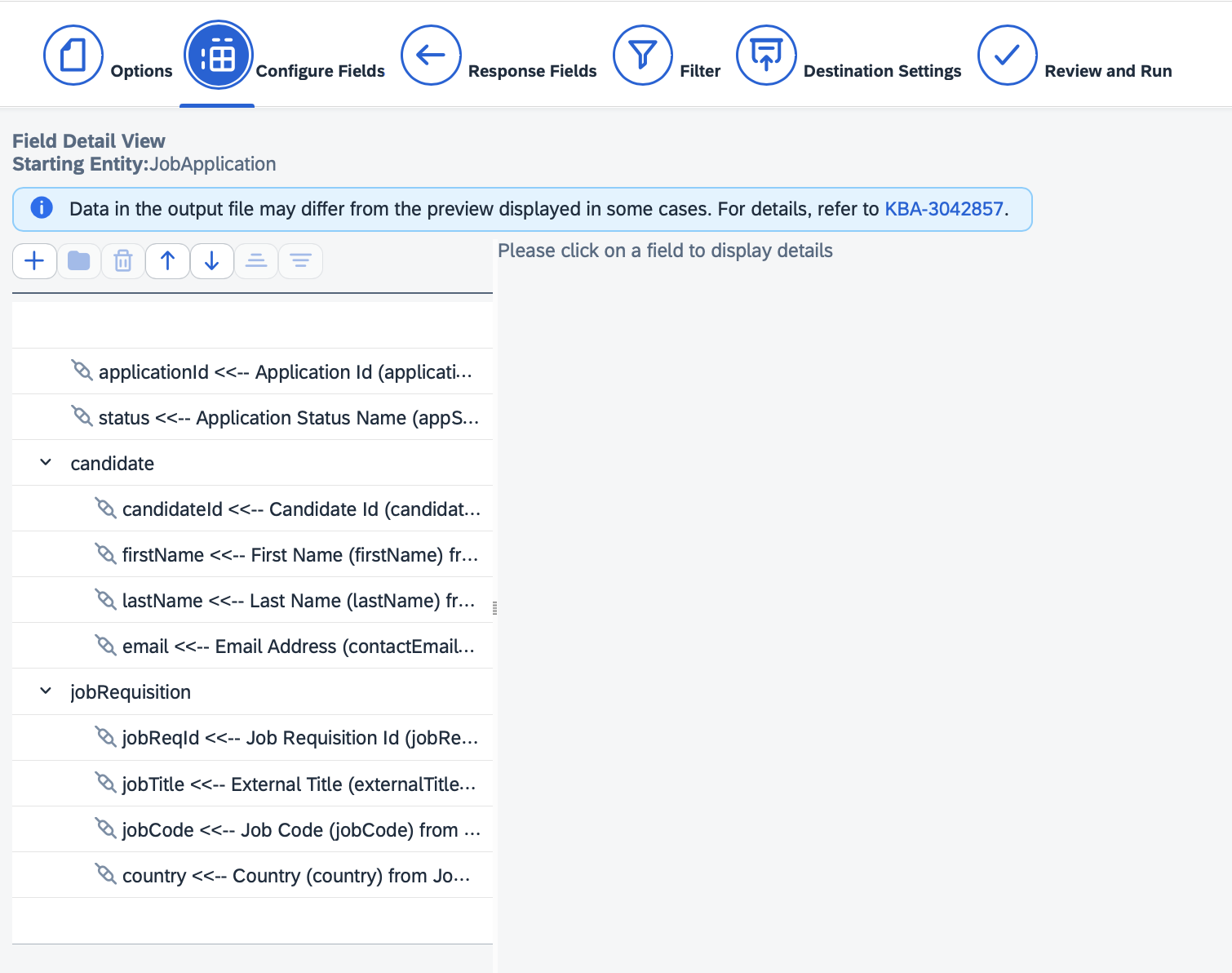
In the Configure Fields section of each integration within the Integration Center add all the fields from your environment that you want to make visible in Starred. This will allow you to later filter and segment your data effectively.
Filter section
In the Filter section of each integration, define the specific statuses or status IDs for Starred to monitor. For example, to initiate a survey for candidates who have been rejected, select all relevant rejected statuses configured in your environment. This method can also be used for other field types, enabling you to apply multiple filters as needed.

Limitations of the SAP Successfactors integration
Currently, the Candidate Applied survey cannot be triggered through the SuccessFactors integration. This is due to the integration’s reliance on a stage change event, which does not occur when a candidate initially applies within the SuccessFactors environment.