
In this article, you'll learn:
- What standard fields Starred pulls automatically from your ATS (referred to as ATS Metadata)*
- Why this data is important
- How to add more custom fields to this set and why
- How to manage your existing custom fields
- Some best practices
* Not valid for Workday integrations: Starred will pull fields only if they have been added to the report. We recommend adding all of the corresponding fields to the report.
💡 What is ATS metadata
Every time Starred creates a survey sendout, it automatically collects a set of 20 standard ATS fields. We call this ATS Metadata.
This data helps you understand results by role, department, stage, or other hiring details. It also ensures that filtering and analysis are consistent across your entire organization.
Most ATS Metadata appears as filter options on the dashboard. Only values that should remain anonymous are excluded.
The following fields are automatically retrieved:
| Requisition ID | Rejection Reason | Job Posting Date |
| Job ID | Application Source | Created At |
| Job Name | Application Date | Updated At |
| Job Description | Application ID | Respondent External ID (Anonymous) |
| Department ID | Rejection Date | Respondent First Name (Anonymous) |
| Department Name | Withdrawal Date | Respondent Last Name (Anonymous) |
| Application Stage | Hired Date | |
| recruiterFirstName | recruiterLastName | |
| hiringManagerFirstName | hiringManagerLastName |
Which job name it's pulled (whether internal or external) depends on availability through the ATS. Below a brief overview of the main integrations we offer. Feel free to reach out to us if yours is not in the list:
-
Greenhouse: External if available, otherwise internal
- Lever: External
- Successfactors: Internal
- Workday: External
- Workable: External
- SmartRecruiters: Internal
- Kombo-integrated ATS: it depends on the ATS
If you wish to add the one that is not being pulled as metadata, do not forget to include it as a custom field (when available).
Currently, the dashboard allows filtering by Departments, Locations, Application Sources, and Application Stages. Additional fields may become available in future updates.
What are Custom Fields
Custom Fields are designed to capture additional pieces of information from the application or job in your ATS that are not included in the standard ATS Metadata.
Companies often need fields such as:
-
Business unit
-
Recruiter name
-
Division or region
-
Employment type
-
Office
- Brand
These fields allow you to personalize Starred to match your own data structure and reporting needs. Which custom fields are available for you to add will depend on the ATS you're using. Our Customer Experience Team can help you define the custom fields and add them to your account!
How to Add Custom Fields
To create new custom fields:
1. Go to Settings
- From the menu on the left-hand side, select ⚙️ Settings.
2. Click on Custom Fields
3. Add a new field
- In the string New field name type the name of the field
- In the dropdown Select field type choose between Text, Number, Date or Boolean.
Using types ensures that formatting is always correct. For example, dates will appear consistently across all dashboards and exports.
Once you've created your Custom Fields you can add them to your workflows to start pulling the data with your new survey sendouts.
This does not work retroactively, so make sure to add all the fields you need before setting up your workflows.
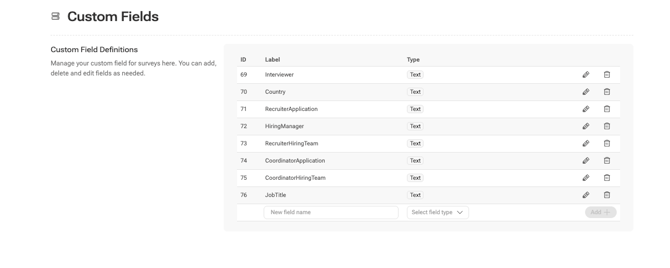
Managing Custom Fields
You can manage the Custom Fields you have created in Settings > Custom Fields.
1. Go to Settings
- From the menu on the left-hand side, select ⚙️ Settings.
2. Click on Custom Fields
- Click on the pencil icon next to the field to edit it
- Click on the bin icon to delete the field.
After deletion, data related to the field can no longer be updated and future data cannot be based on this field. Deletion is permanent.
Depending on the size of your account, this update may take several hours.
✨ Best Practices
- You can only add Custom Fields to your workflows after creating them in your Settings, so make sure to get that done first! Our Customer Experience Team is here to help.
- Adding Custom Fields to your Settings and workflows does not work retroactively for received responses, so we recommend deciding on your fields during your account implementation. It's better to add one more than one less!
- Deleting custom fields is permanent, so do it with caution.