
An ATS hyperlink allows you to send a Starred survey through your Applicant Tracking System (ATS).
Use this option when:
-
Your ATS is not natively supported by Starred
-
You want to send survey invitations directly from your ATS
-
You need to attach ATS data (tokens) to survey responses
Before You Start
You can attach custom fields from your ATS to your survey responses (for example: Candidate Name, Job Title, Recruiter, Location, etc.).
⚠️ Important:
-
The custom field must already exist in Starred.
-
If the field does not exist, the data will not appear in your dashboards.
-
You must have the correct ATS tokens ready before building the link.
👉 We recommend preparing a list of:
-
The field names you want in Starred
-
The corresponding ATS tokens
How to Generate an ATS Hyperlink
Step 1: Open the Survey
-
Go to your Survey Overview page.
-
Find the survey you want to send.
-
Click the dropdown menu next to the survey.
-
Select Generate links.
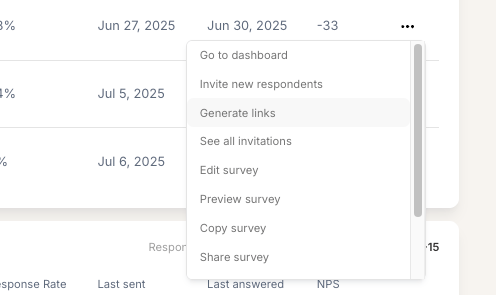
Step 2: Open the ATS Hyperlink Builder
-
On the next page, scroll to the bottom.
-
Select ATS Hyperlink Builder (the last option).
You will see a base link displayed in a text box.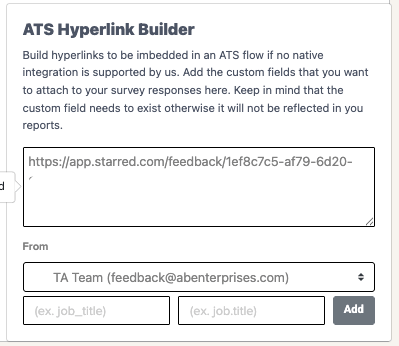
Step 3: Select a Sender
Before adding tokens:
-
Choose a sender from the dropdown menu.
This ensures the correct sender is associated with the survey invitation.
Step 4: Add Custom Fields and Tokens
You can now add custom fields and connect them to ATS tokens.
For each field:
-
Left column: Enter the name of the custom field exactly as it should appear in Starred.
-
Make sure spelling is consistent across all surveys.
-
-
Right column: Paste the corresponding ATS token.
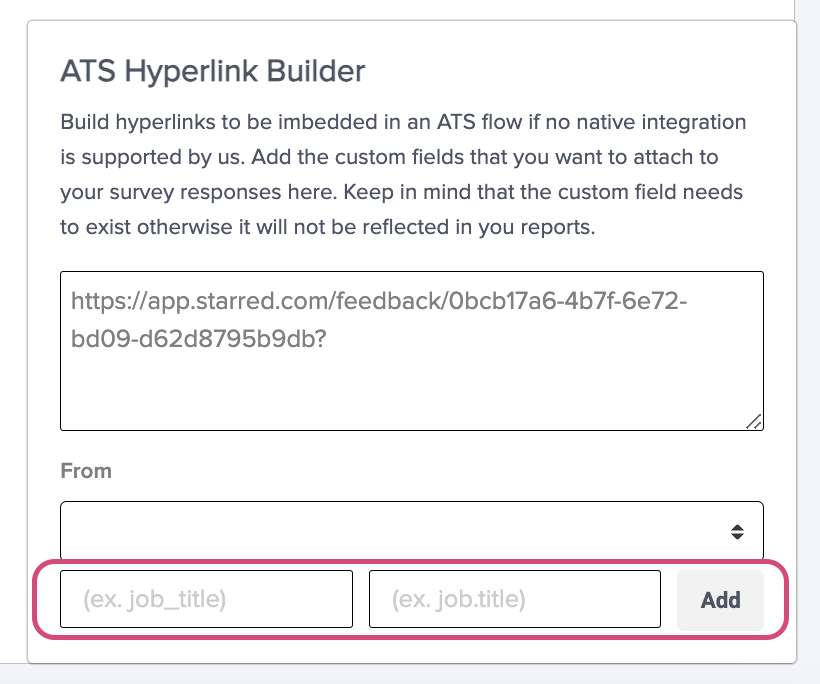
Click Add.
You will see the hyperlink above automatically update with the new token.
Repeat this process for all required fields.
Final Step: Copy and Use the Link
Once all fields are added:
-
Click on the generated link to copy it.
-
Paste the link into your ATS email template.
-
Send the email through your ATS as usual.
Best Practices
-
Keep field naming consistent across surveys.
-
Double-check tokens before sending.
-
Test the link internally before launching at scale.
-
Ensure all custom fields exist in Starred beforehand.