
Starred’s export tools give you full access to your data.
You can download:
-
Dashboard summaries
-
Individual charts and questions
-
Comparison views
-
Comments and qualitative feedback
-
Complete response datasets with metadata
Look for the three vertical dots (⋮) anywhere in the dashboard to access export options.
How to Export
-
Open the dashboard you want to export
-
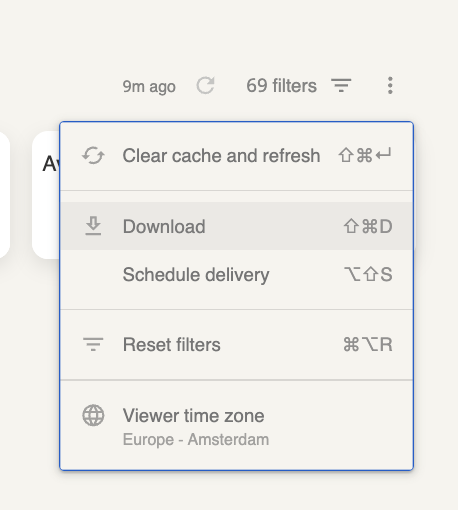
Click the three dots (⋮) in the upper-right corner
-
Select one of the following:
-
Download – Export immediately
-
Schedule delivery – Set up recurring reports
-
Available Formats
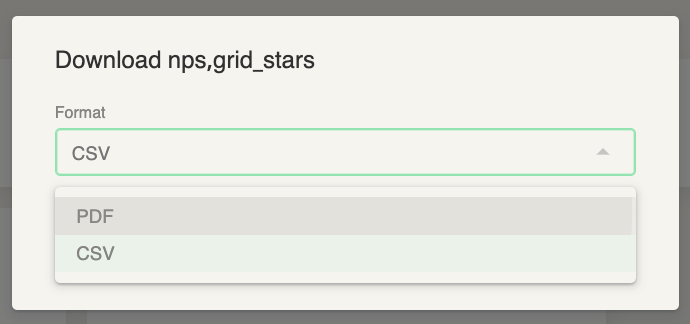
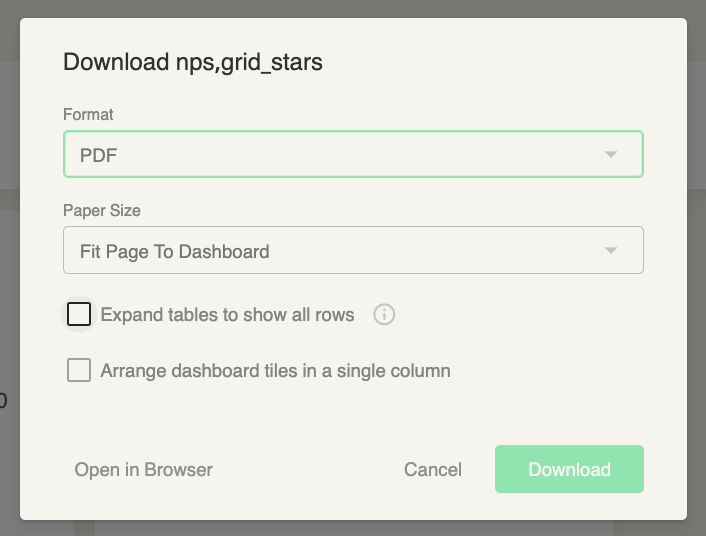
PDF Export
Best for: Presentations and visual reporting
You can customize:
-
Page orientation (portrait/landscape)
-
Included sections
Enable “Expand tables to show all rows” to avoid truncated tables.
CSV Export
Best for: Data analysis and full comment access
CSV offers the most flexibility for sorting, filtering, and reporting.
⚠️ For very large datasets, CSV is more reliable than PDF.
Exporting Individual Charts and Questions
Use this option when you need data for a specific question.
-
Hover over a chart until the three dots (⋮) appear
-
Click the menu
-
Select Download data
-
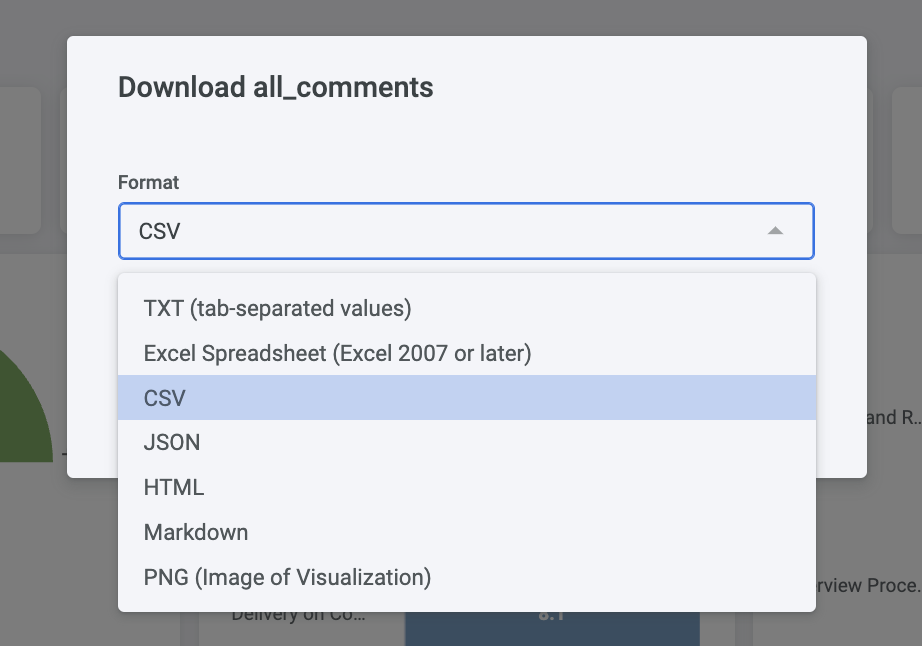
Choose your format
📊 Best practice: Always use CSV when exporting comments for easier analysis.
CSV Export Limits
-
Default limit: 500 rows
-
Maximum limit: 5,000 rows
-
To export everything: Select All results in Advanced Download settings
Exporting Individual Responses
This export includes:
-
All answers
-
Timestamps
-
Custom fields
-
Respondent details (name and email, when survey is not anonymous)
How to export
You can export individual responses only from your Survey Dashboards.
-
Go to the Responses tab
-
Click the three dots (⋮)
-
Select Export to CSV
The file is sent directly to your email and can be opened in Excel, Google Sheets, or analytics tools.