
You can create and manage styles in Survey Settings → Styles.
How to create or edit a survey style
-
Go to Survey Settings → Styles
-
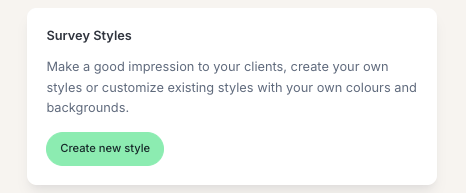
To create a new style, click Create New Style
-
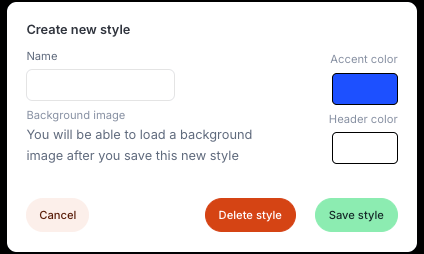
In the editor, customize:
-
Name - Give your style a clear, recognizable name
-
Background image - Upload a visual background for your survey
-
Optimal aspect ratio: 16:9
-
Recommended resolution: 1600 × 900 (higher resolutions are allowed if ratio is maintained)
-
Maximum file size: 2 MB
-
-
Accent color - Appears in respondent names, star ratings, and the Submit button
-
Header color - Applied to the survey header text
-
📘 You can create multiple styles in Starred.
Use the dropdown menu to select a default style, which will automatically apply to any new survey you create.
To edit your style:
-
click the dropdown menu next to the style and select Edit.
To set a style as the default:
-
use the dropdown menu and select Use as default style.
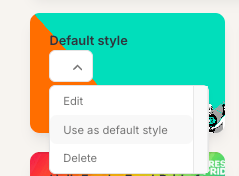
This will automatically apply the style to all new surveys.