
The homepage helps you:
-
Track performance trends at a glance by comparing your results over the last 30 days, to the previous 30 days.
-
Identify priority areas by giving you a snapshot of your performance
-
Monitor feedback volume
- Spot issues early
- Access key dashboards quickly
It is designed as your starting point for daily or weekly reviews.
The homepage view is dynamic and depends on:
-
What your organization is measuring
-
Your user permissions
This means different users may see different data.
What you see on the homepage
Your homepage may include the following highlights:
-
Number of responses (NPS only)
-
Candidate NPS
-
Comment sentiment score
-
Hiring manager NPS
-
Top three priorities from the Priority Matrix
-
Product updates
Each section is shown as a tile.
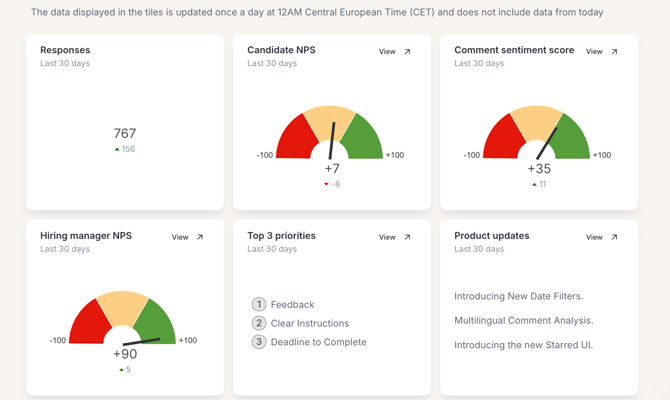
Each tile links directly to its related dashboard.
When you open a dashboard from a tile a default time filter of the last 30 days is applied
How to use the Homepage for weekly reporting
Turn your homepage into a quick weekly performance review tool!
Step 1. Review your response volume
Check the Number of responses tile.
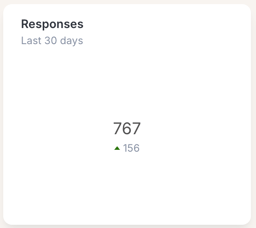
Ask yourself:
-
Has feedback volume increased or decreased since last week?
-
Are response levels high enough for reliable insights?
If responses are low, consider reviewing your invitation strategy. Reach out to your Customer Success Manager for advice and guidance, or 📘 Read our guide on increasing your response rate →
Step 2. Check NPS performance
Review the Candidate NPS and Hiring Manager NPS tiles.
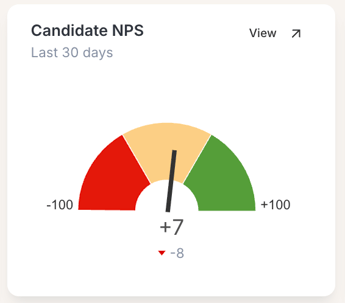
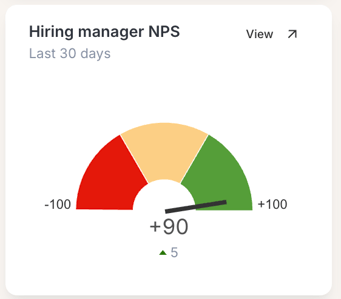
Look for:
-
Upward or downward trends
-
Large changes compared to the previous period
Click each tile to open the detailed dashboard and explore drivers behind changes.
Step 3. Analyze comment sentiment
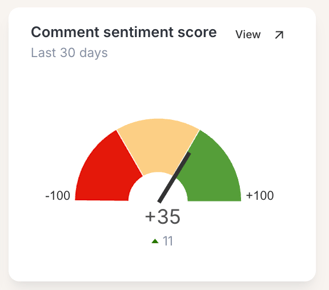
Look at the Comment sentiment score tile to understand how respondents feel overall and click to view the dashboard to analyze:
-
Sudden drops in sentiment
-
Repeated negative themes
-
Improvements after recent changes
Use this data to prioritize follow-up actions.
Step 4. Review top priorities
Check the Priority Matrix tile to see the top three improvement areas.
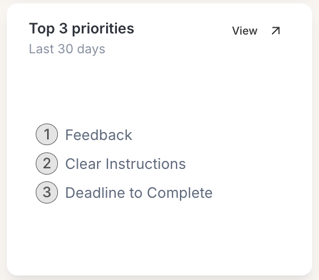
These priorities indicate:
-
What matters most to respondents
-
Where action will have the biggest impact
Use this section to guide weekly team discussions.