
In this article, you'll learn:
- What user roles and teams are and why they are important
- Differences and use cases for the 3 roles Starred offers
- How to create Teams in Starred
- How to view data from different Teams in the dashboard
💡 User Roles and Teams
Not all users need full visibility. In fact, unrestricted access can make it difficult for your team to focus on what is important to them. User roles and Teams help you give each person the right level of access, making sure everyone sees only what is relevant to them.
For example:
-
Team Managers should only see data for the teams they oversee
-
Recruiters should never see each other’s performance
-
Admins need full control over company settings and visibility into all data
Admin role
Admins automatically receive full access. This includes:
-
Adding and managing colleagues
-
Creating and editing teams
-
Configuring integrations
-
Adding and managing custom fields
-
Viewing and managing scheduled survey sendouts
Team Manager
Team Managers have access to:
-
Data for all members of the teams they manage
-
Multiple teams if assigned to more than one
-
All Team Member data within their teams
-
Their own data
They do not see other teams or recruiters outside their scope.
Team Member
Team Members can only access:
-
Their own data
-
Their own performance insights
They never see peer performance or team-level data.
📘 Role Comparison Table
A quick overview of what each role can access in Starred.
| Permission / Feature | Admin | Team Manager | Team Member |
|---|---|---|---|
| View own data | ✔️ | ✔️ | ✔️ |
| View Team Members' data | ✔️ | ✔️ | ✖️ |
| View other teams | ✔️ | ✖️ | ✖️ |
| Manage teams | ✔️ | ✖️ | ✖️ |
| Add or manage colleagues | ✔️ | ✖️ | ✖️ |
| Add or manage custom fields | ✔️ | ✖️ | ✖️ |
| Manage purchased packages | ✔️ | ✖️ | ✖️ |
| Manage integrations | ✔️ | ✖️ | ✖️ |
| View and manage scheduled sendouts | ✔️ | ✖️ | ✖️ |
| Belong to multiple teams | ✔️ | ✔️ | ✔️ |
👥 How to Create Teams
Only Admins can create Teams and they can do it from the dedicated Teams page of the settings.
To create a new Team:
1. Go to Settings
-
From the menu on the left-hand side, click ⚙️ Settings.
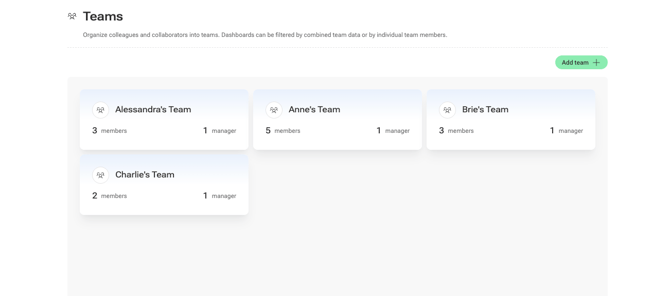
2. You're taken immediately to the Teams section.
-
This is where all team creation and role assignments are managed.
3. Create a Team
-
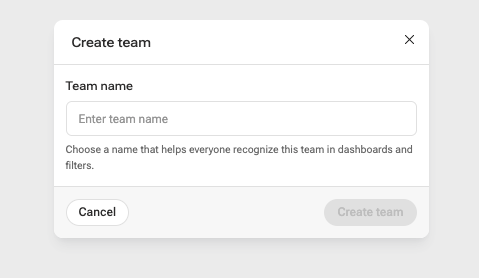
Click Create Team and give your team a name.
4. Add Team Members
You can add users in two ways:
- Option A: Add Team Members from your account users
- Click on the dropdown menu "Add colleague" to select a colleague from the list. - Option B: Add someone manually
- Click on "Add Manually" and enter the person's name and email address or external ID.
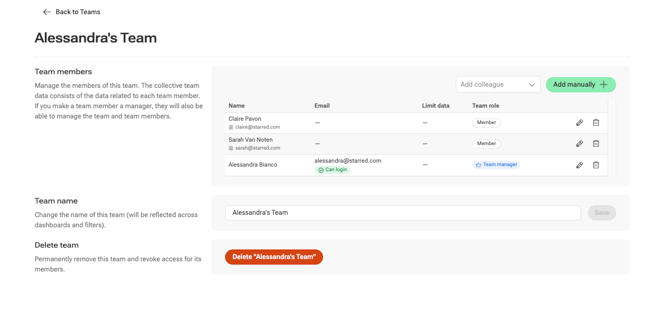
The manual option allows you to add Team Members to a Team that do not have access to Starred. In this way, the Team Manager can have an overview of the entire Team's performance in the dashboard.
5. Assign Team Managers
- For each person you add to the Team, you can choose whether they are a Team Manager or not by flagging the box "Is Team Manager"

6. Limit Team Member data to specific dates
When adding a new Team Member, you can decide from or up to when to include your Team Member's data in the Team's data.
📚 This feature is useful in case your Team Member has switched from a different team.
You can restrict as of when you want to include their data in the Team you're adding them to.
This way, you won't get past data related to this Team Member (or future data, from when they switch Team) in your Team's data in the dashboard.
- Limit to a date: excludes all data after the chosen date
- Limit from a date: excludes all data before the chosen date
7. Save Your Team
-
Once everything is configured, save the team.
-
You can repeat this process to create as many teams as you need.
Viewing Teams in Dashboards
Now that you've created Teams, as an Admin you can view data for each Team in the Candidate Experience dashboard.
To access the dashboard:
1. Go to your Homepage
2. Click on 📈 Candidate Experience
- On the Dashboard, click on your company name at the top right corner
- You can navigate between different views, from all company data, to your own data, to different Teams data.
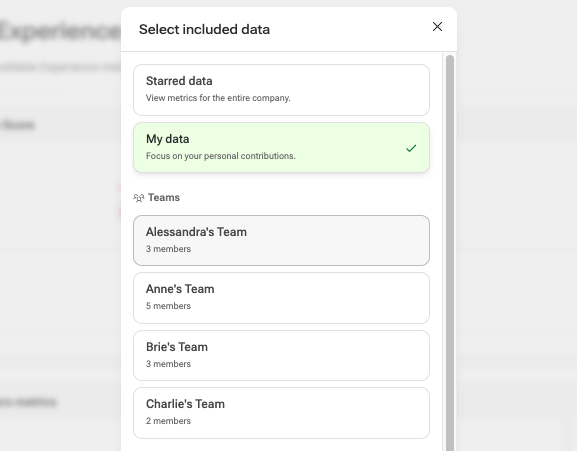
Only Admins have access to all company data.
If you're a Team Manager, here you'll find a list of the Teams you manage.
If you're a Team Member, you'll find only your own data.