
From the Colleagues section, Admins can assign, edit, and customize user roles to define what each team member can view and do in Starred.
Available User Roles
Starred offers the following user roles to match your organization's structure.
Each role comes with a default set of permissions, which you can customize to fit your organization’s structure.
- Admin
- Leadership
- Recruiter
- Recruitment Coordination Manager
- Recruitment Coordinator
- Recruitment Marketeer
- Recruitment Operations Manager
- Sourcer
- Team Lead
Managing User Role Permissions
For each role, you can fine-tune access rights and visibility within the platform.
To configure permissions:
- Go to the Colleagues section.
- Click Edit next to the role you want to modify.
- Adjust the permissions, journey access, and data policies as needed.
Permission Options
-
User Role Access Rights - Define what users with this role can do — for example, manage surveys, view dashboards, or send invitations.
-
Journey Type Restrictions - Control which journey types each role can access.
→ Grant access to all journey types
→ Selected journey types only — e.g., “Hired,” “Rejected,” “Interview”
Example: Allow Recruiters to view Candidate surveys, but restrict Hiring Manager insights to Team Leads.
- Data Access Policies (DAPs) - Create role-based Data Access Policies to define what data each user can see. These apply automatically when users are added or removed from roles. 📘 Learn about Data Access Policies →
Example: Limit a recruiter’s dashboard to only show survey responses related to candidates they manage.
- Bespoke Dashboard Access - Control whether this role can view custom dashboards (Bespoke Dashboards) by toggling access in the permissions list.
📊 This helps you share advanced dashboards only with specific groups, like leadership.
-
Sub-Dashboard Permissions - Sub-dashboards show aggregated insights separate from individual survey dashboards. Assign these dashboards to specific roles by selecting which sub-dashboards each one should access.
Example: Assign to recruiters only the "Main" dashboard and the Priority Matrix. Assign the "Platform Usage" section only to Admins, etc.
How to configure a Data Access Policy
- Enable “Limit data access for this role.”
- Select the relevant field (e.g., RecruiterApplication).
- Choose “Full name” from the right-hand menu.
- Create a rule matching the recruiter’s name in your ATS with their name in Starred.
Assigning Roles to Colleagues
You can assign roles in two ways — manually or in bulk via CSV.
Manual Role Assignment
When inviting a new colleague manually:
- Click Invite new colleagues.
- Enter their name and email address.
- Select the appropriate role from the dropdown menu.
- Send the invitation.
The colleague will receive an activation email and automatically gain access according to their assigned role permissions.
Bulk Role Assignment via CSV
Use this option if you want to add multiple colleagues and assign roles at once.
Steps:
- Download the CSV template → (includes a “Role” column).
- Add your colleagues’ details and select a role for each.
- Upload the completed file to Starred.
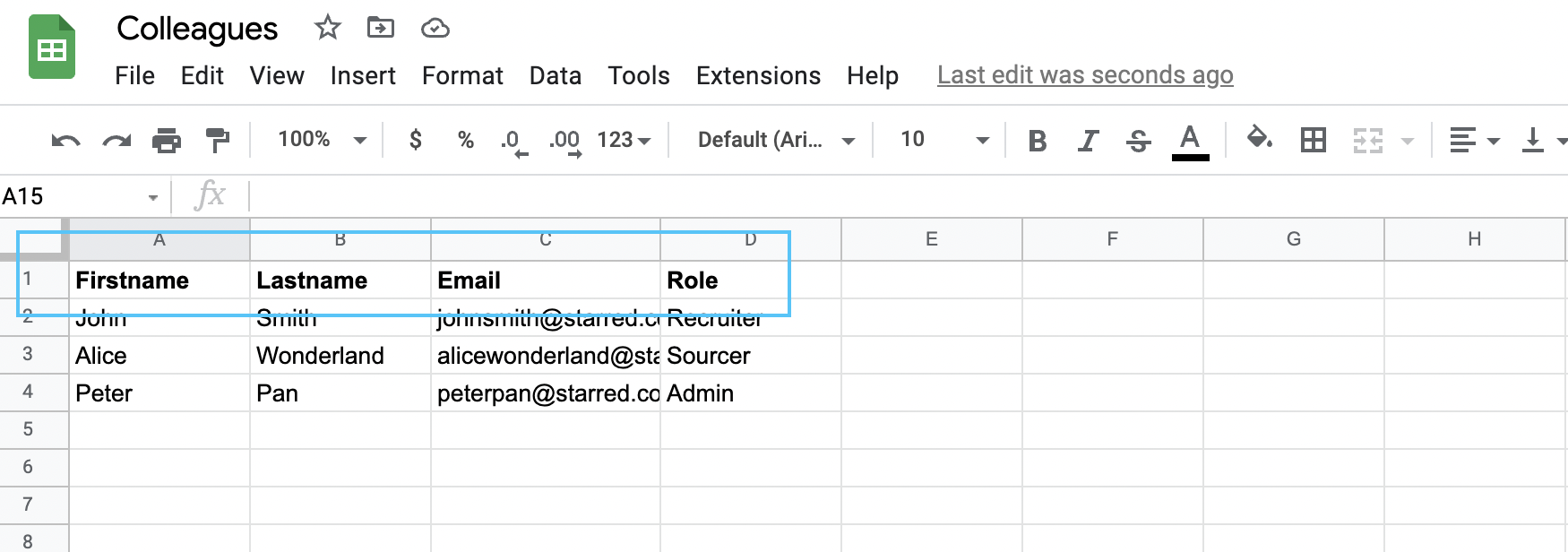
👍 Pro tip: Always use the provided template — it ensures correct column names and data formatting for smooth import
✅Summary
| Setting | Purpose | Example Use |
|---|---|---|
| User Role Access Rights | Define what users can do | Allow Recruiters to view dashboards but not edit surveys |
| Journey Type Restrictions | Limit visibility per journey | Only Leadership sees Hired candidates |
| Data Access Policies (DAPs) | Restrict data by user fields | Recruiter sees only their candidates |
| Bespoke Dashboard Access | Control access to custom dashboards | Give access only to Managers |
| Sub-Dashboards | Assign aggregated dashboards | Team Leads view overall performance dashboards |