
- Upload contacts manually
- Import them via a .csv file
- Or automate your surveys through an integration
Accessing the Invitation Composer
To open the invitation email composer:
- Go to your Survey Overview →.
- Select a survey.
- Click the dropdown menu on the right-hand side ⋯
- Choose Invite new respondents.
- Click Compose message.
Editing or creating a template
When you open the composer, a default example template is displayed. You can use it as is or edit it to your preference.
- To save your changes, click the floppy disk icon 💾 at the top of the page.
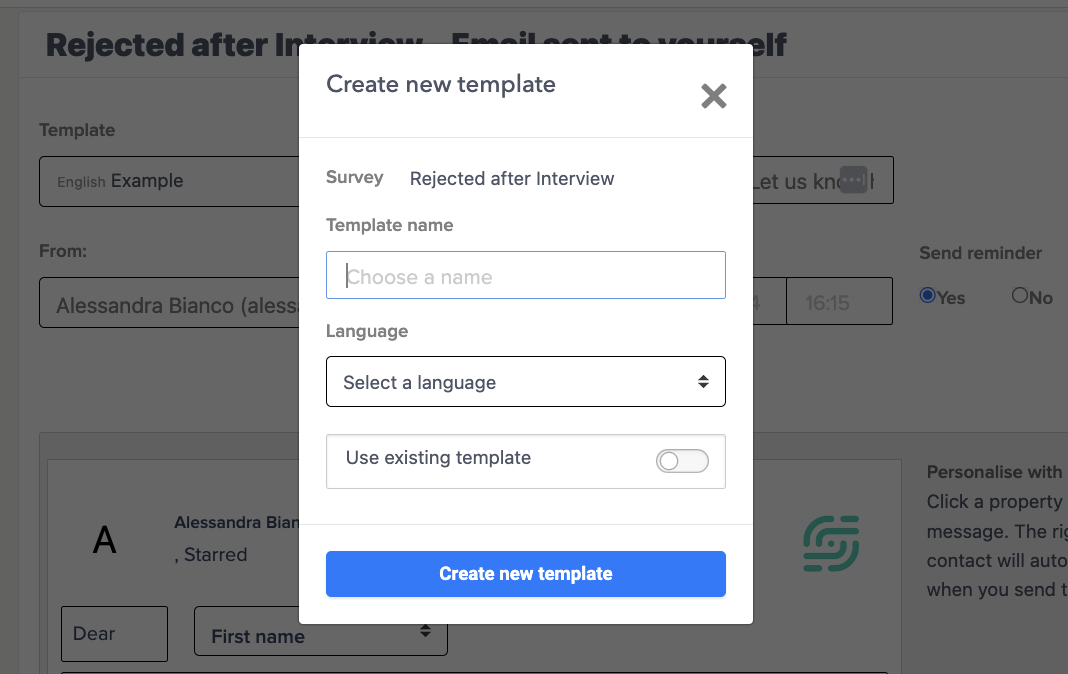
- To create a new template, open the dropdown menu and select Create new template.
- A window will appear where you can give your template a name and select the language.
Embedding a survey question in your invitation email
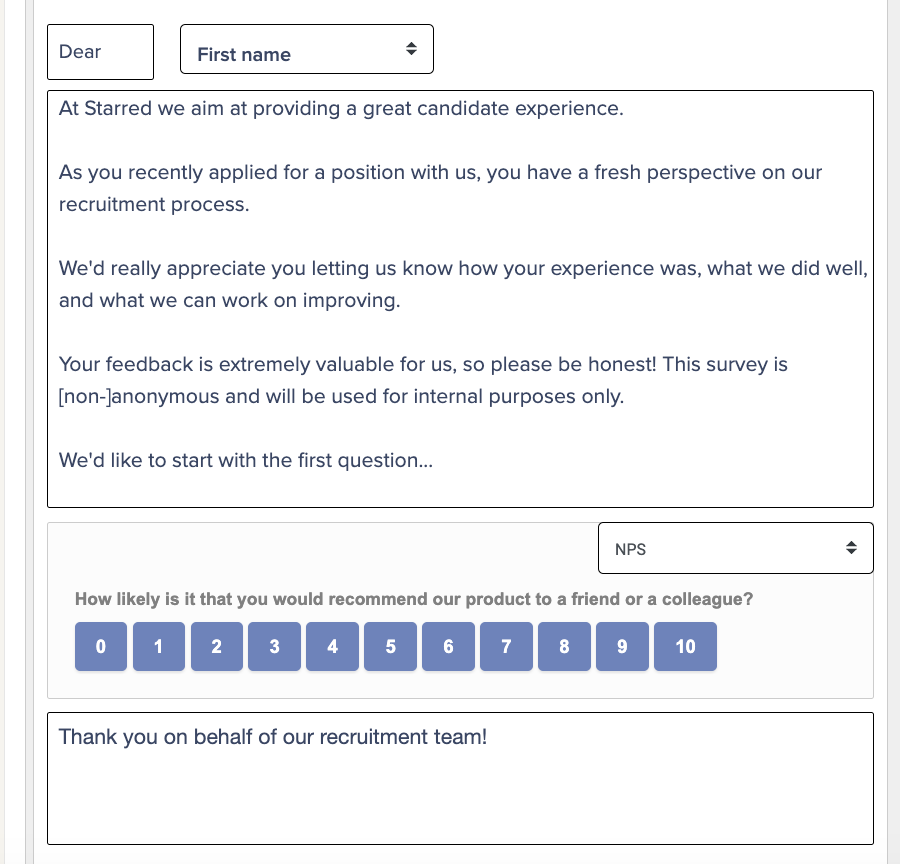
We recommend embedding one of your survey questions directly into the invitation. This gives respondents a quick preview of the survey and increases engagement.
To embed a question:
- Scroll to the dropdown menu located below your invitation text.
- Select the question you want to include.
💡Tips and Notes:
-
When a respondent clicks a rating in the embedded question, they will be redirected to the rest of the survey.
-
We recommend choosing an NPS question. Starred includes a feature called NPS auto-capture, which records the score even if the respondent leaves after clicking a rating. 📚 Learn more about NPS auto-capture (→)
-
You can add translated versions of your invitation emails so respondents receive the email and survey in their preferred language, improving response rates. 📚 Learn how to translate your invitation emails (→)
Personalizing the invitation email
You can make your invitation feel more personal by using custom fields, similar to how you use them in surveys.
To insert a custom field:
- Type @ followed by the name of the custom field.
💡 Recommended fields to personalize:
- Job title or position
- Office or city
- Recruiter or hiring manager name
📕 Important:
-
The spelling of your field must match the custom field name exactly.
- You can check your field names in Custom Field Settings
- You can also use these tags in the email subject.
Adding the candidate’s name to the email subject
If you want to include a candidate’s first name in the email subject line, use this format:
%firstName
