
This guide covers:
-
Company branding (logo, banners, colors)
-
Selecting the right email template
-
Personalizing emails with dynamic fields
Company Branding
Your survey invitation emails and surveys automatically use your company branding.
Branding is configured once and then applied to:
-
The survey and email layouts.
-
The survey header and banner
-
Buttons, hover effects, and accents
Logo
-
Used in email and survey header
-
Recommended format: LinkedIn logo format - 64 x 64 px
- Supported file formats: SVG, PNG, JPG
Two banners
- Banner 1: Main survey banner used on the survey page (vertical).
Recommended dimensions: 408 x 696 px
Supported file types: PNG, JPG
Maximum file size: 8 MB - Banner 2: Banner used in email and mobile contexts (horizontal)
Recommended dimensions: 600 x 200 px
Supported file types: PNG, JPG
Maximum file size: 8 MB
Theme Colors
You should select 2 colors:
Primary Color
-
Used for email bottom banner, selected rating, survey progress bar and submit button
-
It should reflect your company branding
Background Color:
-
Used for the survey and email background
- It should be a light color if possible
You can customize your styling by uploading your banners, logo and colors at this page.
Choosing the Right Email Template
When setting up a survey sendout, you select the recruitment stage in the workflow builder.
The system shows relevant email templates based on the stage selected:
-
Candidate Apply
-
Rejected Application
-
Rejected Phone Screen
-
Rejected Interview
-
Withdrawn
-
Hired
Each template includes stage-appropriate messaging that you can edit before sending.
How it works
When building your workflow:
-
At the last step (Action step: Starred as destination)
-
Select a recruitment stage.
-
Choose a template.
-
The subject line and body auto-populate with default text.
-
Edit the content as needed.
-
Review changes
-
Save the Action step
Personalizing emails with dynamic fields
Every time Starred creates a survey sendout, it automatically collects a set of 20 standard ATS fields. We call this ATS Metadata. 📘 Learn about ATS Metadata →
You can personalize emails using this ATS metadata. This allows you to automatically insert candidate and job information into your email.
How to Use Personalization Fields
When customizing your email template as described, add any field from the ones listed above using this format:
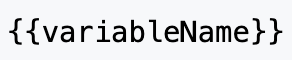
Examples:
Basic greeting with job information:

Reference recruiter:

Reference application date:

When the email is sent, these placeholders are replaced with real data from your ATS.
Email templates in Batch Sendout mode
So far we've touched on how to choose your email template when building workflows.
Starred also offers an option to send surveys manually, either for testing or for other purposes. This feature is called "Batch Sendout".
Here's how you choose your email template when using the Batch Sendout option.
- From the left panel, select Batch Sendout
- Click Create Batch
- Fill in your settings for the sendout:
- Enable test mode (optional)
- Link sendouts in a collection (optional)
- Languages (optional)
- Add Recipient(s) details
- Select Stage
- Add reminder (optional)
- Bypass Cooling Down Period (optional) - Scroll back up and click Email Content
- From the Email template dropdown, select your preferred template
- Edit it, if needed
- Click Send email batch to send