
Filters help you focus on specific segments of your data, compare results, and uncover trends. You can apply multiple filters and save commonly used views.
📘 This feature is only available to users with the Can filter dashboards permission.
Starred offers a set of standard filters, but you can also use any of the custom fields you have created as filters. 📘 Learn about custom fields →
Date filters
The Date filters let you analyze results over time using invitation or response dates.
Available conditions include:
-
In (e.g., last 30 days, last month)
-
Is
-
Is before
-
Is after
-
Is between
-
Is empty / Is not empty
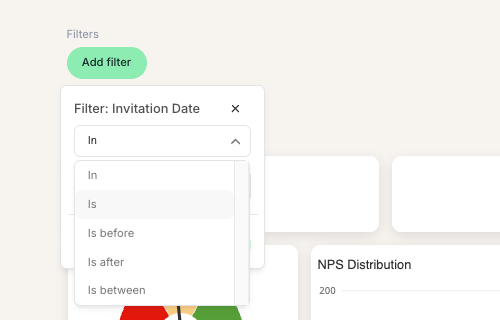
Using “is between”
This filter includes the start date and excludes the end date.
Examples:
-
January 2024: 01-01-2024 to 02-01-2024
-
Q1 2024: 01-01-2024 to 04-01-2024
Journey type and survey filters
This filter is available on aggregated dashboards such as your Admin dashboard, not on individual survey dashboards.
These filters let you analyze data by journey type or by individual survey.
-
Journey type includes all surveys linked to that journey
-
Survey lets you select specific surveys
Use journey type for high-level analysis and survey filters for detailed comparisons.
NPS category filter
If your survey includes an NPS question, you can filter by:
-
Detractors
-
Passives
-
Promoters
This helps you understand how different respondent groups perceive your organization.
Subject filter
This filter is available on aggregated dashboards such as your Admin dashboard, not on individual survey dashboards.
The Subject filter lets you focus on specific question topics.
Example: In a recruiter dashboard, you can analyze only questions related to screening or feedback and exclude topics like career site or job descriptions.
Managing filters
-
Remove a filter by clicking the X next to it
-
Active filters are saved for up to one day
-
When you return to the same dashboard, your previous filters are automatically restored
This also applies to related views such as Comparison dashboards and the Priority Matrix.
Saving filters
If you regularly apply the same filters, you can save them and reuse them anytime. This helps you access key views faster without rebuilding filters each time.
How to save a filter:
-
Apply the filters you want to use
-
On the right-hand side, click Create saved filter
-
Enter a name for your filter
-
Click Save

Your saved filter will now appear in the dropdown menu on the left. You can clear your current filters and reapply the saved filter whenever needed.