
A Recruiter profile allows recruiters to access dashboards that show only the data relevant to them.
This is done by:
-
assigning specific dashboards
-
restricting data access based on recruiter name
-
limiting permissions to viewing insights.
Step 1: Create or edit the Recruiter role
-
Go to Colleagues
-
Open the Roles section
-
Create a new role (e.g. Recruiter) or edit an existing one
Step 2: Assign the relevant dashboards
Recruiters should only see the dashboards that are relevant to their work. Assign the following sub-dashboards:
-
Main tab
-
Comparison tab
-
Department performance dashboard
-
Recruiter performance dashboard
-
Matrix
-
Responses
-
Comments
-
Comment Analysis
Do not assign:
-
Platform Usage
-
Hiring Manager dashboard
-
Coordinator performance dashboard
This ensures recruiters only access candidate experience insights relevant to their role.
Step 3: Apply a Data Access Policy
To ensure recruiters only see their own data, create a Data Access Policy based on Recruiter Name.
Configure the policy so that:
-
The Recruiter Name field matches the recruiter using the dashboard
This automatically applies a dashboard filter, meaning recruiters will only see responses and insights related to candidates they handled.
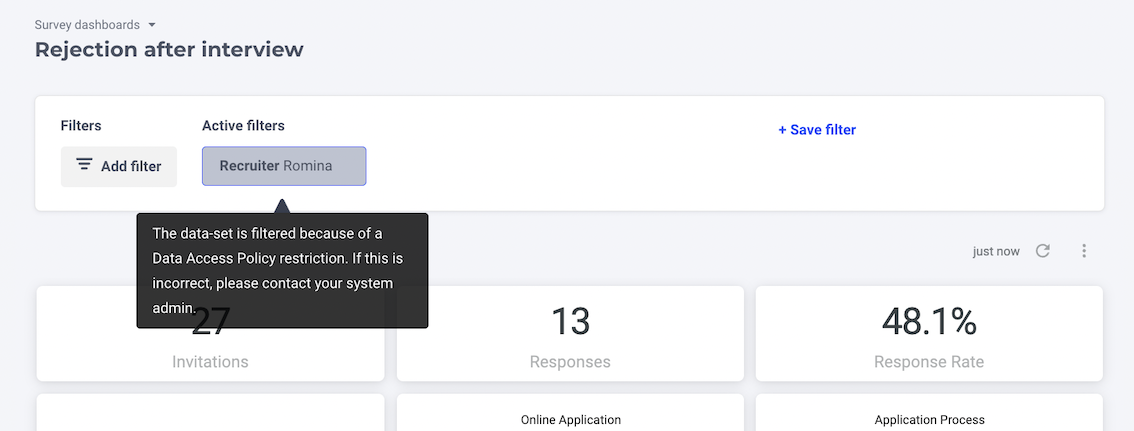
The field you choose depends on the fields you're pulling from your ATS. This could either be recruiter full name or recruiter email. If you're unsure what to select, contact our Support team at support@starred.com.
Step 4: Assign the correct access rights
Recruiters should have view-only access to insights.
Enable the following permissions:
| Permission | Description |
|---|---|
| Can view survey dashboards | Access dashboards for each survey. |
| Can filter dashboards | Use filters to segment dashboard results. |
| Can see individual responses | View respondent-level data and open comments. |
| Can view comments | See open-text responses from respondents. |
Avoid granting additional permissions to ensure the recruiter profile remains focused on reviewing candidate experience data. 📙 Learn about user access rights →
Result
Once configured, recruiters will be able to:
-
Access candidate experience dashboards
-
View insights related only to their own candidates
-
Explore responses and comments
-
Apply filters to further analyze their data
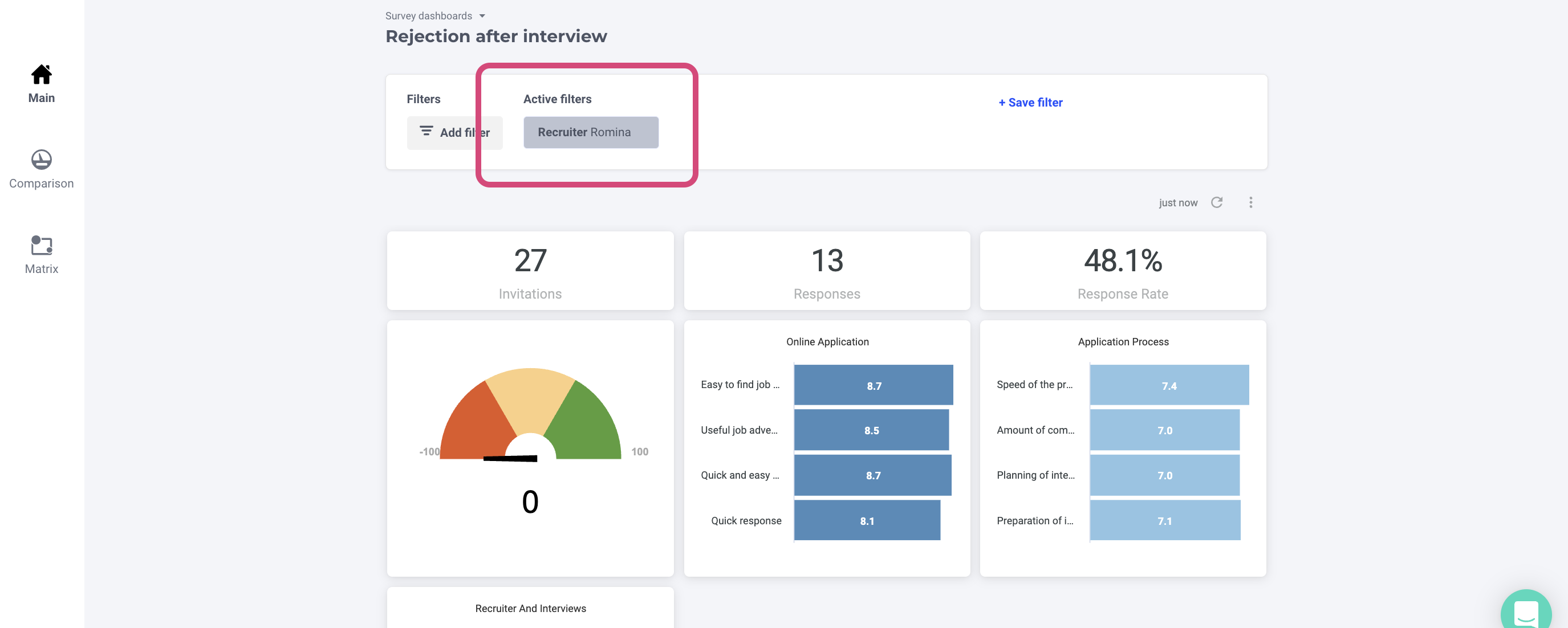
All dashboards will automatically be pre-filtered to their recruiter name, ensuring they only see the data relevant to them.
Recruiter role FAQs
I added one of my recruiters to a Data Access Policy but they can't see their own results.
If a recruiter was added to a Data Access Policy (DAP) but cannot see their own results, there are a few common reasons why this might happen.
-
The recruiter name must match exactly: if your DAP filters data based on Recruiter Name, the recruiter’s name in Starred must match exactly how it appears in your Applicant Tracking System (ATS)
Example:
If the recruiter name in your ATS is John Smith, but the user in Starred is listed as J. Smith, the filter will not match and the recruiter will not see their results. -
Check for small formatting differences. Even small differences can prevent the filter from working correctly. Make sure to check for:
- Extra spaces before or after the name
- Capitalization differences
- Slight spelling variations
If the names match exactly and the recruiter still cannot see their results, please contact support@starred.com for assistance.